








Workflow builder
Contents
Workflows are a collection of steps that automate a process or deliver messages to your users based on your configured logic. In PostHog, you can create a workflow using our no-code workflow builder.
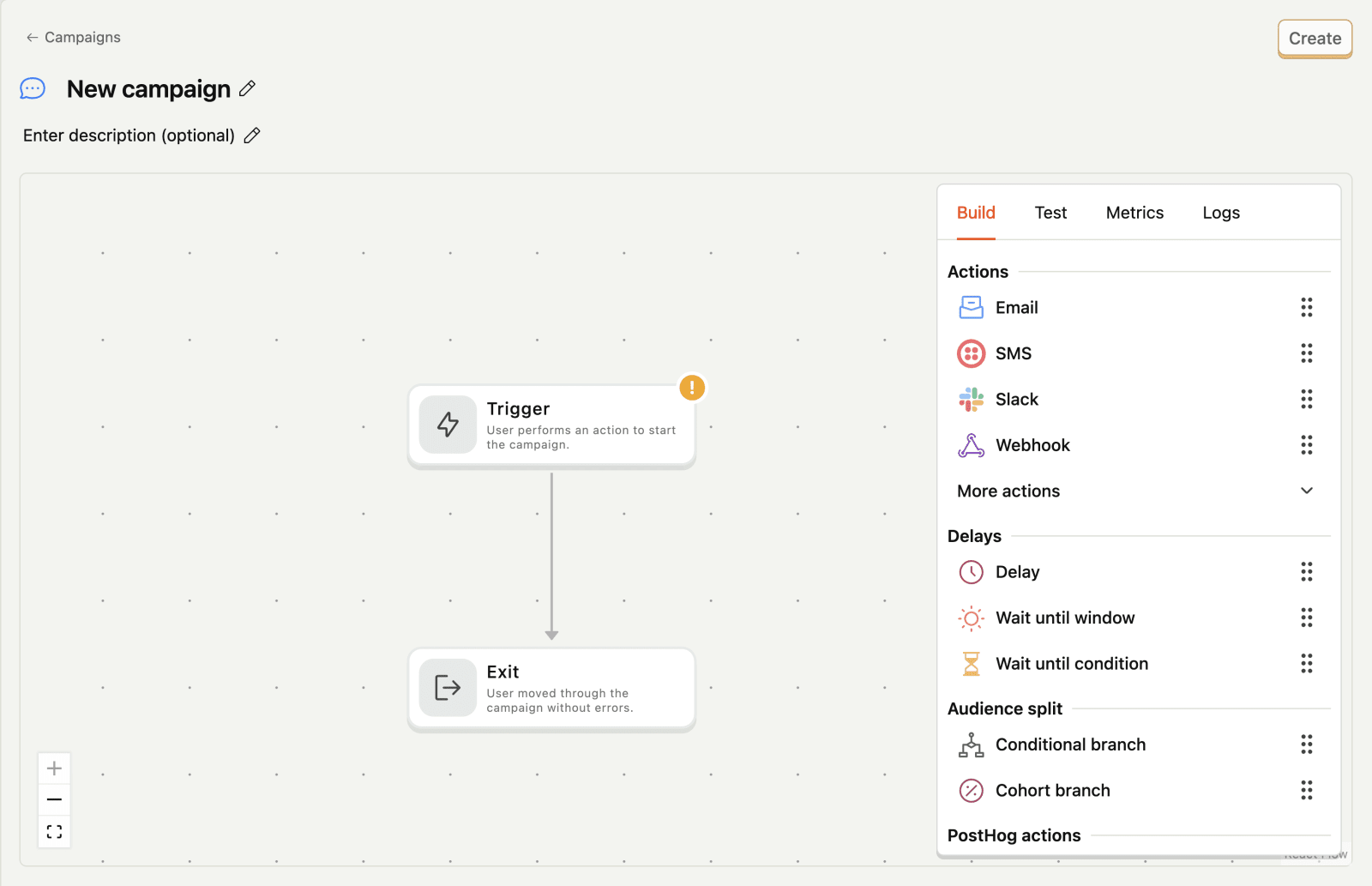
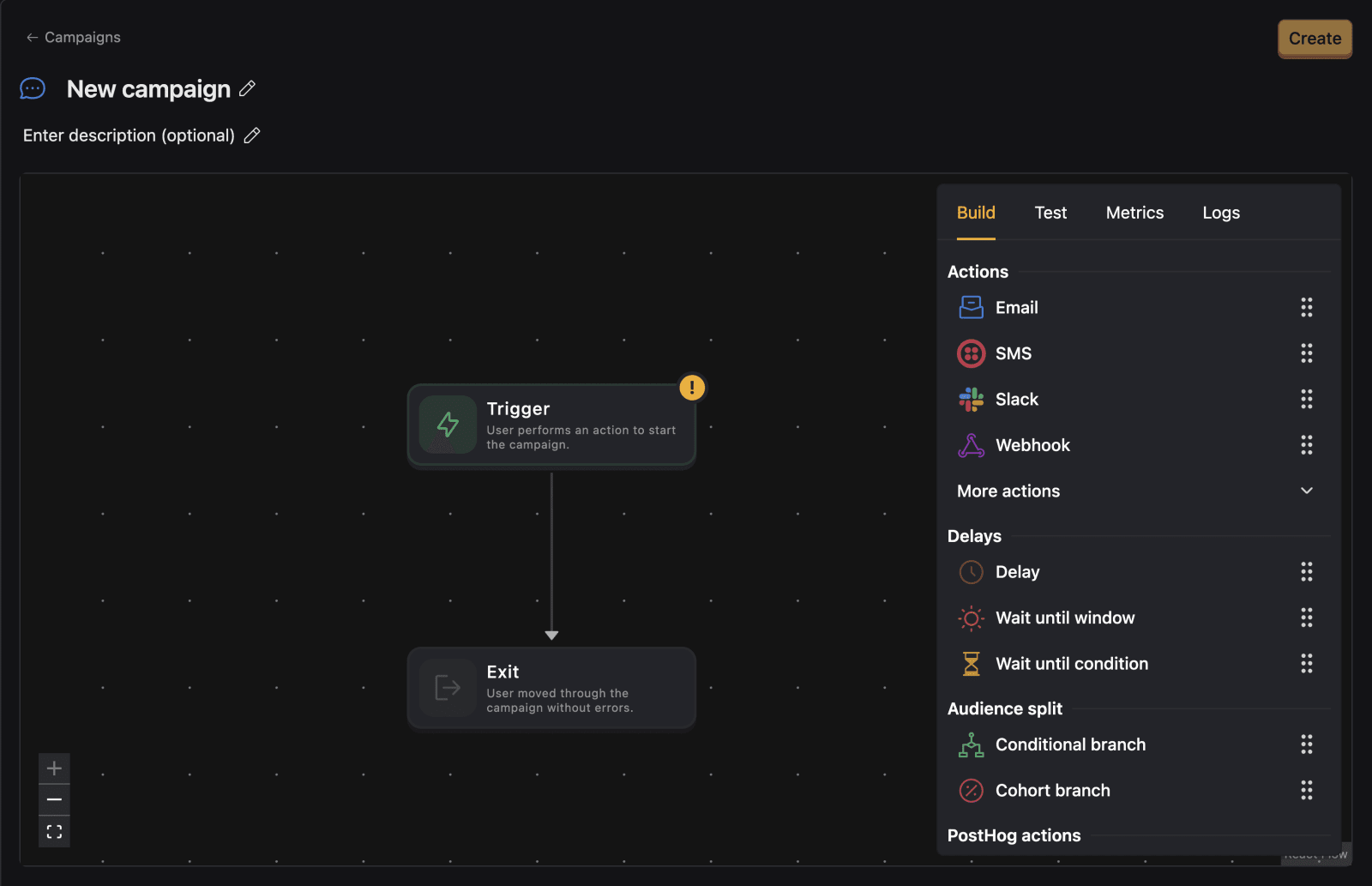
Workflows are composed of the following components:
| Component | Description |
|---|---|
| Triggers | What starts the workflow. We let you start a workflow when an event is performed (e.g. a user signs up), or programmatically via a webhook. |
| Dispatches | The messages you send, mail, slack, SMS, webhook, or any PostHog real time destinations. |
| Delays | Wait steps such as "wait 2 days" or "wait until condition is true." |
| Audience splits | Target and split your users so you can automate some action for them or send a message with more specificity. |
| PostHog actions | Change a person's properties, or trigger other events, once a person reaches a specific point in your workflow. |
| Output variables | Store data from step results in workflow variables for use in later steps. |
Draft and enabled workflows
Workflows have two states: draft and enabled.
| State | Description |
|---|---|
| Draft | A work-in-progress workflow that isn't active. You can save drafts with incomplete or invalid configurations. |
| Enabled | An active workflow that runs when triggered. Full validation is required before enabling. |
When building a workflow, you can save your progress at any time as a draft, even if the configuration is incomplete or has errors. This lets you iteratively build complex workflows without needing a complete, valid configuration at every save.
Validation is only enforced when you enable a workflow. Before enabling, PostHog checks that all required fields are filled and configurations are valid. If there are errors, you'll see a message prompting you to fix them before the workflow can be enabled.
Draft workflows can also be archived, even if they contain invalid configurations.
Triggers
Every workflow starts with a trigger. Triggers represent actions taken by users that kick off the workflow. There are two types of triggers:
| Trigger type | Description |
|---|---|
| Event trigger | A captured PostHog event (e.g. signed up) |
| Webhook trigger | Programmatically start a workflow with a webhook |
Event triggers
Event triggers are any PostHog event. These can be manually or automatically autocaptured by our SDKs. They can be filtered by the event properties and persons properties attached to the event.
To filter your events, click on the three lines icon next to the event name and select Add filter.


Dispatches
Dispatches are the messages you send, mail, slack, SMS, webhook, or any PostHog real time destinations. There are 4 main types of dispatches:
| Dispatch type | Description |
|---|---|
| Send an email natively through PostHog. Configured in the channels section. | |
| Slack | Send a message to a slack channel. Configured in the channels section. |
| Webhook | Call external systems. Configured in the channels section. |
| CDP destinations | Use any realtime destination as an dispatch step to deliver messages to users or other services. |
Delays
Delays help you control the timing of your messages. There are 3 types of delays:
| Delay type | Description |
|---|---|
| Fixed wait | Wait for a fixed amount of time (minutes/hours/days). |
| Wait until condition | Wait until a specific condition is met (e.g. user has property set to a specific value). |
| Wait until time window | Wait until a specific time window (e.g. only send on weekdays 9-5). |
You can see an example of a delay in the email drip campaign tutorial.
Audience splits
Audience splits help you target your automation or messages to specific groups of users. There are 2 types of audience splits:
| Audience split type | Description |
|---|---|
| Conditional branch | Segment by event or persons properties. |
| Random branch | Experiment or A/B test. |
These can be used to target users based on their behavior or properties.
PostHog Actions
PostHog Actions allow you to change a person's properties, trigger other events, or chain workflows together once a person reaches a specific point in your workflow. There are 2 types of PostHog actions:
| PostHog action type | Description |
|---|---|
| Capture Event | Trigger a PostHog event. This can be a useful way to chain workflows together, or track the effectiveness of workflows in analytics dashboards. |
| Update Person Properties | Set a specific person property, or create a new one. This can be a useful way to chain workflows together. |
Output variables
Output variables let you store data from a workflow step's result for use in later steps. This is useful when you need to chain workflow steps together, such as extracting an ID from a webhook response to use in a subsequent API call.
Configuring output variables
To configure output variables on a step:
- Click on a workflow step (like a Webhook dispatch)
- Expand the Output variables section
- Click Add mapping to add a variable mapping
- Select a workflow variable to store the result in
- Specify a result path to extract specific data from the response
You can add multiple output variable mappings to a single step to extract different pieces of data. For example, you might extract both a ticket_id and ticket_number from a single API response.
Using the property picker
Instead of typing result paths manually, use the Pick from response button to select paths interactively:
- Click Pick from response to execute a real HTTP request to the step's endpoint
- The response is displayed as an interactive JSON tree
- Click on any key in the tree to use it as the result path
- If you have multiple variable mappings, select which variable to assign the path to
Result path syntax
Result paths let you extract specific data from a step's response. Use dot notation for nested objects and bracket notation for arrays:
| Example path | Description |
|---|---|
body | The entire response body |
body.id | A top-level property from the response |
body.user.email | A nested property |
body.results[0] | The first item in an array |
body.results[0].id | A property from the first array item |
Leave the result path blank to store the entire step result.